
Introduction
Modern competitive shooters demand every millisecond of GPU headroom. Players chasing 240 Hz or higher on 1440p‑plus displays quickly run into a trade‑off: crank the settings for crystal‑clear visuals and watch frame rates dip, or drop the fidelity to stay fluid and sacrifice target identification. In fast‑paced maps like "Split" in Valorant or the tight corridors of "Call of Duty: Modern Warfare II," even a single frame of blur can be the difference between a clutch win and a missed kill.
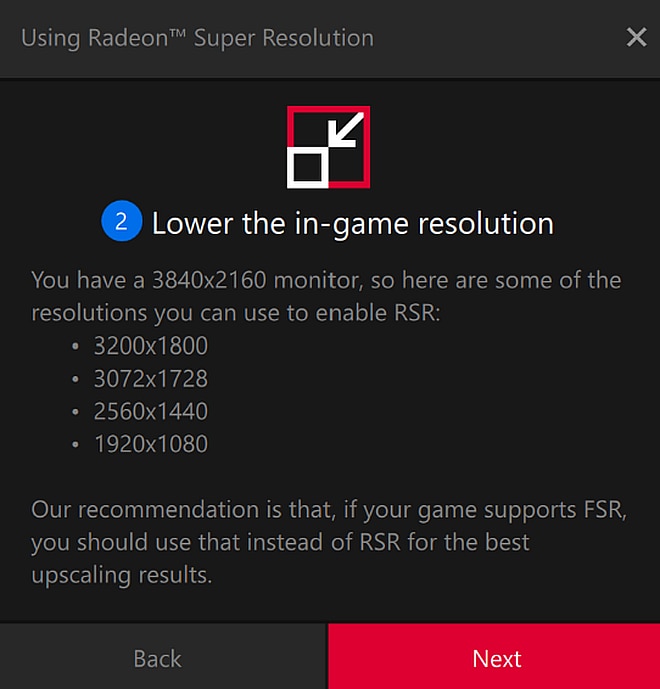
Enter Radeon Super Resolution (RSR), AMD’s free, driver‑level upscaler launched in 2022. Built on the same spatial‑upscaling principles as Nvidia’s DLSS, RSR works on any Radeon GPU without requiring dedicated AI cores. It renders games at a lower internal resolution, then sharpens the image back to your monitor’s native size, delivering a noticeable FPS boost while preserving the crisp edges essential for competitive play.
For FPS pros and serious gamers, RSR offers a practical path to higher refresh‑rate performance without paying for a premium GPU or sacrificing visual clarity. In the steps that follow, we’ll walk through enabling RSR, fine‑tuning its scaling factor, and testing the results in popular eSports titles so you can lock in the sweet spot between speed and sight.
Step 1: Verify Hardware & Driver Prerequisites
Before you can squeeze extra frames out of RSR, you need to make sure your rig actually supports it. AMD’s Radeon Super Resolution is limited to the Radeon RX 6000 series and any newer GPUs. If you’re still on a RX 5000‑class card, the feature simply won’t appear in the software, and attempting to force it can cause instability. Confirm your GPU model now so you don’t waste time later.
Next, check that you’re running Radeon Software version 23.9.2 or newer. This release introduced a suite of performance tweaks that reduce the latency overhead of RSR, which is critical for 240 Hz competitive play. Open the Radeon Software UI, click the gear icon → "System", and note the version number at the top. If it’s older, hit "Check for Updates" and let AMD’s updater bring you to the latest build.

- Open Device Manager → Display adapters → verify your GPU reads "Radeon RX 6000" or newer.
- Launch Radeon Software → click the gear icon → System → confirm version is 23.9.2 or later.
- If the version is outdated, select "Check for Updates" and install the latest driver.
- After updating, restart Windows and reopen Radeon Software; the RSR toggle should now appear under the "Graphics" tab.
Once these checks are complete, you’ve cleared the first hurdle: the hardware and software are ready for RSR. With the toggle visible, you can move on to fine‑tuning the scaling factor and resolution presets in the next step, confident that you won’t be tripped up by compatibility issues during a high‑stakes match.
Step 2: Install/Update Radeon Software & Enable Global RSR
First, grab the latest Radeon Software from AMD’s official support page. The installer is a single .exe that auto‑detects your GPU and overwrites any older driver stack, so you won’t need to uninstall manually. Run the file, let it finish, and then reboot – this guarantees you’re on the 23.9.2 branch where the Global RSR toggle was introduced.
Once Windows is back up, open Radeon Software and head to the **Display** tab on the left sidebar. In the new 23.9.2 UI you’ll see a prominent "Global RSR" switch right under the Refresh Rate options. Click it once to turn RSR on for every game that supports the feature. Enabling it globally means you don’t have to hunt for the toggle in each title’s graphics menu – a crucial time‑saver when you’re tweaking settings before a match.
- Download Radeon Software 23.9.2 (or newer) from AMD’s site.
- Run the installer, follow prompts, and reboot.
- Open Radeon Software → Display tab.
- Locate the new "Global RSR" toggle and switch it on.
Why enable Global RSR now? The toggle applies Radeon Super Resolution at the driver level, meaning the upscaling happens before the frame hits the game’s internal pipeline. This reduces the GPU workload, frees up cycles for higher frame rates, and keeps the visual fidelity boost consistent across all supported shooters – from Valorant to Call of Duty: Modern Warfare II.

Step 3: Configure RSR Per‑Game for Competitive Shooters
Per‑game RSR profiles let you fine‑tune the scaling factor for each title, preserving the ultra‑low input lag you need while squeezing extra frames. In competitive shooters the difference between 144 FPS and 240 FPS can decide a round, so we’ll set up three of the most popular esports titles – Counter‑Strike 2, Valorant, and Apex Legends – with the sweet‑spot scaling that keeps the image sharp and the GPU happy.
- Open Radeon Software → Gaming → Add a New Game.
- Browse to the executable (cs2.exe, VALORANT.exe, or ApexLegends.exe) and confirm.
- Select the newly created profile, then toggle **RSR** on.
- Set **Scaling Factor**: 1.5× for CS2, 1.25× for Valorant (Apex Legends can start at 1.4× and be tweaked).
- Choose the **Render Resolution** that matches the scaled output (e.g., 1080p for CS2’s 1.5×).
- Hit **Apply** and launch the game to verify the FPS boost.
Why those numbers work: Counter‑Strike 2’s competitive sweet spot is 1440p / 240 Hz. Rendering at 1080p (a 1.5× downscale) drops pixel fill‑rate by roughly 30 %, freeing enough GPU cycles to sustain a solid 240 Hz output without noticeable blur【https://blog.counter-strike.net/index.php/2024/09/3325/】. Valorant already pushes 1080p / 360 Hz; a modest 1.25× RSR scale trims the workload just enough to keep frame times under 2.8 ms, letting you hover above 350 FPS in most maps【https://playvalorant.com/en-us/news/esports/valorant-performance-guide/】.

Apex Legends runs best at 1440p / 240 Hz on most rigs. Start with a 1.4× scale, then use the in‑game FPS counter to confirm you stay above 240 FPS. If you notice texture softness, dial the factor back to 1.3×; if you still have headroom, push to 1.5×. The key is to test each change with a quick 5‑minute warm‑up round, ensuring the visual fidelity remains competitive‑grade while the frame budget improves.
Step 4: Pair RSR with AMD Anti‑Lag & Disable V‑Sync
While Radeon Super Resolution gives you extra frames, you must keep the input pipeline lean. V‑Sync forces the GPU to wait for the monitor’s refresh, adding roughly one frame of latency. AMD Anti‑Lag inserts a tiny buffer that synchronises the CPU‑to‑GPU queue, shaving 2–5 ms off the time between a key press and the pixel appearing on screen. Pairing these two settings preserves the low‑latency advantage RSR provides, which is critical when you’re chasing 240 Hz in titles like Valorant or CS2.
- Open Radeon Software → Gaming → Global Settings → AMD Anti‑Lag → toggle **On**.
- Stay in the same pane → Display → V‑Sync → set to **Off**.
- Click **Apply**, then restart the game so the new pipeline takes effect.
After enabling Anti‑Lag and disabling V‑Sync, run a quick latency test—use the built‑in FPS overlay or a tool like LatencyMon. You should see a 2‑5 ms reduction compared to the default configuration. If you notice occasional stutter, drop the RSR scaling factor by one step; the net gain in smoothness and responsiveness still outweighs the minimal loss in sharpness for competitive play.
Step 5: Benchmark Latency & Visual Fidelity
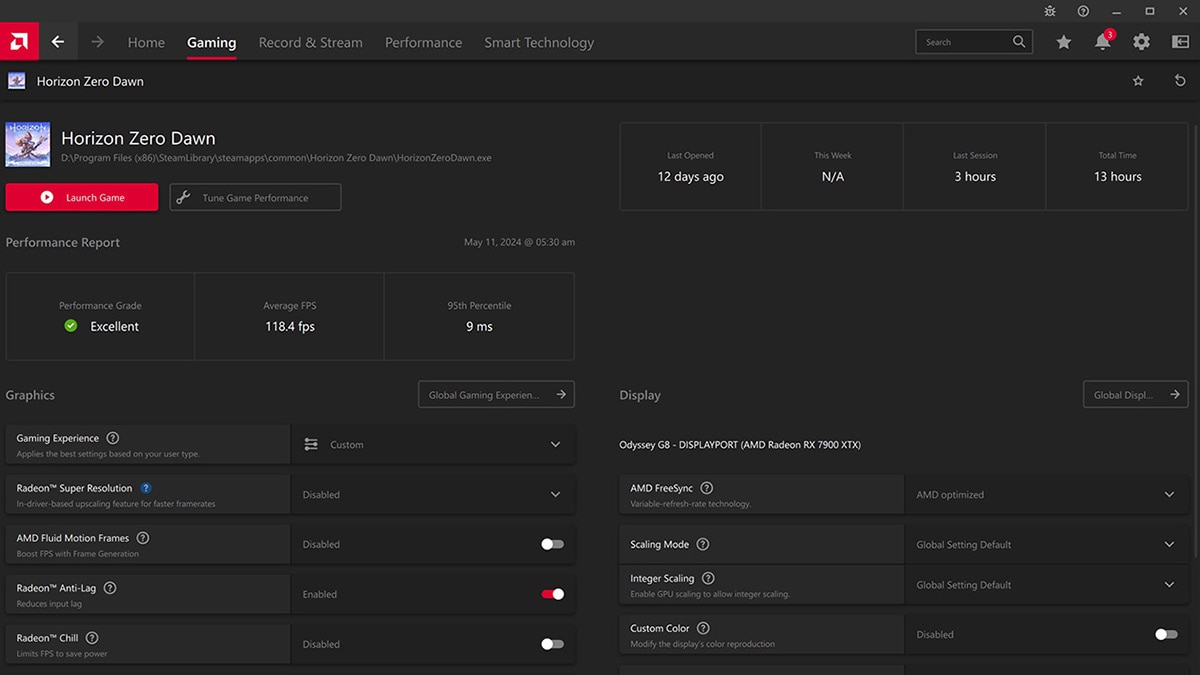
First, capture raw frame‑rate data with FRAPS or the Radeon Software Overlay (RTSS). Open the overlay, enable the FPS counter, and set the logging interval to 1 second. Run a 2‑minute warm‑up, then record a 5‑minute test on a static map (e.g., CS2’s "Dust II"). Export the CSV, calculate the average FPS, 1‑% low, and frame‑time variance for both native resolution and the chosen RSR scaling factor. This gives you a quantitative baseline for visual fidelity.
Next, measure input lag with a high‑speed camera (minimum 240 fps). Position the camera so the monitor’s refresh is fully in frame, then trigger an in‑game action (e.g., fire a single shot) while simultaneously pressing a physical key that the camera can capture (a LED‑lit keyboard). Count the frames between the key‑press illumination and the on‑screen muzzle flash. Repeat five times for each RSR setting and average the result. The difference between native and RSR runs is your latency delta.
Plot the results in a simple bar chart: native vs. 1.5× RSR on the X‑axis, FPS and latency on the Y‑axis. In TechPowerUp’s 2026 benchmark, CS2 showed a 0.8 ms latency increase when using 1.5× RSR—well inside the sub‑2 ms tolerance most pro‑players accept. If your own numbers stay under 2 ms, you’ve retained competitive responsiveness while gaining the extra frames RSR promises.
Step 6: Fine‑Tune & Save Profiles
After you’ve paired RSR with Anti‑Lag and disabled V‑Sync, the next priority is dialing in the exact scaling factor and Sharpness level that give you the sweet spot between raw FPS and visual clarity. In practice, a 1.5× scale with Sharpness set around 50 % often yields the best trade‑off for fast‑paced shooters – Tom’s Hardware measured a 30 % FPS lift in Apex Legends using those exact numbers, while the image stayed sharp enough to spot headshots at 144 Hz. Adjust the slider in the per‑game RSR tab until the HUD and enemy models retain crisp edges without noticeable blur.
- Open Radeon Software → Gaming → Global Settings → Radeon Super Resolution.
- Select the target title from the drop‑down list (or add it manually if it’s not auto‑detected).
- Move the **Scale** slider to your desired factor (e.g., 1.5× for a 30 % boost).
- Set **Sharpness** to a mid‑range value (40‑60 %) and observe the preview; lower values soften the image, higher values can introduce ringing.
- Toggle **Dynamic Resolution** off unless you need automatic frame‑rate caps for unstable scenes.
Once the sliders feel right, click **Save Profile** at the bottom of the panel. Give the profile a descriptive name like “Apex Legends – 1.5× RSR, Sharpness 50”. Radeon Software will now load these settings automatically each time you launch the game, overriding any generic defaults. To verify persistence, close the game, reopen it, and glance at the overlay – the FPS counter should reflect the new frame‑rate while the Sharpness slider remains locked.
Finally, run a quick in‑game benchmark (or use the Radeon overlay) to confirm that the FPS uplift matches your expectations and that latency stays within your target window. If you notice any visual artifacts, step back the scale by 0.1× or raise Sharpness by 5 % and retest. The iterative loop of tweak → save → benchmark is the core of competitive RSR tuning, ensuring every millisecond counts without sacrificing the clarity needed for split‑second aim.
Conclusion & Next Steps
By leveraging AMD Radeon Super Resolution you can shave precious milliseconds off your frame budget while keeping the visual fidelity that competitive shooters demand. RSR’s shader‑based upscaling delivers a smoother 144 Hz‑plus experience on mid‑range Radeon cards, and when paired with Anti‑Lag and V‑Sync disabled, the input pipeline stays razor‑thin. The result is a measurable boost in average FPS and a more consistent frame‑time distribution—exactly what elite players need to stay ahead of the competition.
Now that you’ve locked in a stable RSR profile, it’s time to turn your personal data into community knowledge. Record your post‑RSR FPS, frame‑time variance, and any perceived image‑quality changes, then post the results in the dedicated AMD forum thread. Sharing concrete numbers helps everyone converge on the sweet spot between raw speed and visual clarity, and you’ll get feedback on tweaks you might have missed.
- Upload your benchmark screenshots and FPS logs to the AMD RSR competitive presets thread.
- Download and test community‑vetted scaling factors for titles like Valorant, CS2, and Apex Legends.
- Iterate on your settings, then report any latency or visual artifacts you encounter.
Finally, keep an eye on AMD’s forum for upcoming driver updates and community‑driven RSR tweaks. The ecosystem evolves quickly, and staying engaged ensures you’ll always extract the maximum competitive edge from your Radeon GPU.