
Introduction
Competitive first‑person shooters like Valorant, Call of Duty II, and Apex Legends demand reaction times measured in single‑digit milliseconds. In practice, pro players agree that a round‑trip ping of 5 ms or lower is the practical ceiling for truly elite play — any higher and shot‑timing and recoil control become noticeably compromised.
A hybrid network lets you marry the deterministic bandwidth of a 2.5 Gbps Ethernet link with the ultra‑low‑latency, sub‑1 ms air‑interface that Wi‑Fi 7 (802.11be) delivers when configured with OFDMA and Multi‑Link Operation. Wired trunks guarantee zero‑packet loss for tournament servers, while strategically placed Wi‑Fi 7 access points give players the freedom to move between stations without sacrificing the sub‑5 ms target.
For community tournament organizers, LAN‑café owners, and serious home‑gaming squads, this blend solves two pain points at once: the cost and cabling complexity of a full‑blown 10 Gbps backbone, and the rigidity of an all‑wired arena that forces players into fixed rigs. By deploying a modest 2.5 Gbps switch core and a handful of Wi‑Fi 7 APs, you can field a 50‑player bracket that consistently stays under the 5 ms threshold, setting the stage for fair, high‑skill competition.

Step 1: Assess Your Tournament’s Network Requirements
Before you buy any switches or Wi‑Fi 7 access points, quantify the raw traffic your event will generate. Competitive shooters thrive on sub‑5 ms round‑trip ping, so your design must keep latency well under that threshold while still handling peak bandwidth. Start by listing the maximum simultaneous players per match, the number of concurrent matches on a single LAN, and any auxiliary services (voice chat, streaming, leaderboards) that will share the same fabric.
Plug the numbers into a quick spreadsheet: each 1080p FPS player typically consumes about 6 Mbps of upstream and downstream traffic. For a full 32‑player match that’s roughly 200 Mbps of aggregate flow (32 × 6 Mbps ≈ 192 Mbps) – a figure confirmed by IDC’s 2024 bandwidth study. Multiply that by the number of matches you plan to run side‑by‑side to uncover your true peak demand.
- Maximum players per match: 32
- Estimated bandwidth per player: 6 Mbps
- Total per‑match traffic: ~200 Mbps
- Concurrent matches (e.g., 4): ~800 Mbps
- Add 20 % overhead for VOIP, streaming, and protocol inefficiencies
With the peak internal load calculated, choose an uplink that can comfortably exceed it. A 2.5 Gbps backbone gives you a 3‑fold safety margin for a 800 Mbps peak, while still leaving headroom for future expansion (e.g., 4K streams or larger brackets). Remember that the internet uplink can be smaller—most tournaments only need 1 Gbps for external traffic—but the local LAN must sustain the full 2.5 Gbps to keep every player under the 5 ms latency ceiling.

Step 2: Choose a 2.5 Gbps Wired Backbone
A solid 2.5 GbE backbone is the spine that guarantees every player’s data reaches the server with deterministic latency. Unlike 1 GbE, a 2.5 Gbps link can comfortably handle the burst traffic of dozens of high‑refresh‑rate streams, voice chat, and telemetry without queuing. For tournament‑scale LANs, this extra headroom translates directly into sub‑5 ms round‑trip pings, keeping reaction times consistent across the field.
Our go‑to hardware for a cost‑effective, high‑performance core is the Netgear XS728T. It offers 48 unmanaged 2.5 GbE ports, a truly non‑blocking switching fabric, and an industry‑leading 1 µs switching latency that keeps packets moving at near‑light speed. The unit also supplies 24 PoE++ ports (up to 90 W) so you can power Wi‑Fi 7 access points without extra injectors, simplifying rack layout and reducing cable clutter.
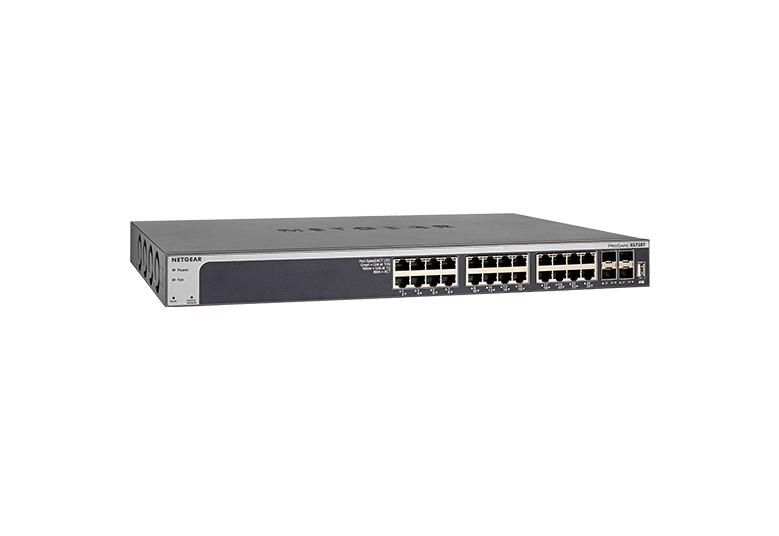
Wiring the backbone correctly is just as critical as the switch itself. Use Cat‑6a solid‑core patch cables for every link; they maintain the 2.5 Gbps signal integrity over 100 m runs and are future‑proof for 5 GbE upgrades. Terminate each cable with RJ45 keystone jacks rated for 2.5 GbE, and route them through cable‑management trays to keep airflow optimal for both the switch and nearby APs.
- Cat‑6a solid‑core patch cables (minimum 3 m for rack‑to‑desk connections)
- RJ45 keystone jacks certified for 2.5 GbE
- Cable‑management trays or Velcro ties to preserve airflow
- PoE++ ports on the switch to power Wi‑Fi 7 APs directly
- Optional 10 GbE uplink module for ISP or core‑to‑core redundancy
Step 3: Select a Wi‑Fi 7 Access Point
The AP you choose is the bridge between your 2.5 Gbps wired spine and the players’ wireless rigs. Look for a unit that ships with Qualcomm FastConnect 7800, supports the full 320 MHz channel bandwidth, and offers Multi‑Link Operation (MLO). These features let a client simultaneously use a 5 GHz 320 MHz slice and a 6 GHz 320 MHz slice, stitching the links together for sub‑5 ms round‑trip ping—exactly the latency envelope competitive shooters demand.
A solid, off‑the‑shelf option is the Aruba CX730 Wi‑Fi 7 AP. It delivers 8×8:8 MU‑MIMO, 4 KHz sub‑carrier spacing, and native MLO support, giving you eight spatial streams per band and the ability to aggregate them across bands. The CX730’s 2.5 Gbps Ethernet uplink matches your backbone, and its built‑in AI‑driven radio management keeps interference low even when dozens of rigs are fighting for airtime.

- Qualcomm FastConnect 7800 chipset (ensures 320 MHz channel support and 4 KHz sub‑carrier spacing).
- Native Multi‑Link Operation (MLO) for simultaneous 5 GHz + 6 GHz streams.
- At least 8×8:8 MU‑MIMO to serve many concurrent gamers.
- 2.5 Gbps Ethernet uplink to match the wired backbone.
- Firmware that exposes per‑SSID QoS, airtime fairness, and latency‑priority queues.
Once the hardware is in the rack, flash the latest ArubaOS‑C firmware and verify that the “Advanced QoS” panel is visible. Create a dedicated “Tournament‑Low‑Latency” SSID, bind it to the 6 GHz 320 MHz channel, and enable MLO with the 5 GHz companion band. Set the traffic class for UDP game packets to “high priority” and cap the maximum airtime per client at 10 % to prevent a single rig from hogging the spectrum. Finally, run a ping‑to‑server test from a Wi‑Fi‑7‑enabled laptop; you should see consistent 2–4 ms round‑trip times before you open the tournament lobby.
Step 4: Design the Hybrid Topology & Enable Multi‑Link Operation
Start by wiring your Wi‑Fi 7 access point (AP) directly to the 2.5 Gbps core switch using a dedicated uplink. Prefer a Cat‑6a or higher Ethernet cable, or an SFP+ module if your switch offers it, to guarantee a full‑duplex 2.5 Gbps pipe that never shares bandwidth with other LAN devices. This isolated link eliminates the “shared‑backbone” latency spikes that can occur when the AP competes with game servers, storage, or streaming stations for the same port.
Next, enable Multi‑Link Operation (MLO) on the AP and on every client that will compete in the tournament. MLO aggregates the 5 GHz and 6 GHz bands into a single logical link, allowing the radio to pick the fastest sub‑carrier for each packet. The Wi‑Fi Alliance’s whitepaper confirms that MLO can shave 2‑3 ms off round‑trip latency versus a single‑band connection, a critical margin in sub‑5 ms target environments. Turn on MLO in the AP’s firmware, then push the same setting to the drivers on PCs, consoles, or laptops that support Wi‑Fi 7.

Finally, fine‑tune the channel plan: allocate non‑overlapping 5 GHz (e.g., 165 MHz) and 6 GHz (e.g., 2330 MHz) channels, enable OFDMA and MU‑MIMO, and prioritize gaming traffic with strict QoS rules on the switch. Run a quick ping test (e.g., 10 ms target) from a client to the game server, then verify that the round‑trip stays under 5 ms when MLO is active. Document the settings, snapshot the AP’s config, and lock it down so every tournament day starts with a proven, low‑latency hybrid network.
Step 5: Configure QoS, VLANs, and Traffic Prioritization
Quality‑of‑Service (QoS) is the linchpin that turns a fast 2.5 Gbps backbone into a sub‑5 ms competitive network. By isolating game traffic on its own VLAN and marking those packets with the Expedited Forwarding (EF) DSCP value 46, you tell every downstream device that these frames are latency‑critical and must jump ahead of bulk traffic like downloads or streaming. Cisco’s QoS design guide confirms that a dedicated VLAN combined with EF marking can keep jitter under 4 ms for online gaming.
- Create a VLAN (e.g., VLAN 100) on your core switch and assign all AP uplink ports and any dedicated game‑station ports to it.
- On the same switch, map the VLAN to a QoS policy that sets DSCP 46 for UDP ports used by Valorant (7777), Call of Duty II (3074) and Apex Legends (443).
- On each Wi‑Fi 7 AP, enable 802.11‑ax/11be QoS profiling and bind the AP’s SSID to VLAN 100 so wireless clients inherit the same priority tag.
Finally, activate strict priority queuing on both the switch and the AP. In Cisco IOS this is done with a ‘priority‑queue out’ command on the VLAN 100 interface, while most Wi‑Fi 7 firmware offers a “Game‑Mode” or “Low‑Latency” queue that you can select in the admin UI. After enabling, run a continuous ping test (e.g., ping -t 10.0.0.1) from a client to the game server and verify that round‑trip times stay below 5 ms even when background traffic spikes. Adjust the queue depth or enable WRED (Weighted Random Early Detection) only on lower‑priority queues if you see occasional packet loss.
Step 6: Test, Benchmark, and Fine‑Tune
Start by measuring raw latency on both wired and wireless endpoints. From a command line on a 2.5 Gbps‑connected PC, run `ping -c 20 <gateway>` to capture round‑trip times, then fire up iPerf3 in UDP mode (`iperf3 -c <AP‑IP> -u -b 500M -t 30`) to stress the link and record jitter. Repeat the same tests on a Wi‑Fi 7 client using the same parameters; the goal is a consistent sub‑5 ms average RTT across all 32 players.
- Run a baseline ping test on every client (wired and wireless).
- Execute iPerf3 UDP streams at 500 Mbps to simulate FPS traffic bursts.
- Log latency, packet loss, and jitter for each run.
- Compare results against the target <5 ms round‑trip threshold.
Next, pull the in‑game latency overlay (Valorant’s net‑graph, Call of Duty’s ping meter, or Apex Legends’ network stats) while a short match runs. The overlay reports end‑to‑end ping per frame, letting you verify that the hybrid network stays under the 5 ms ceiling under real gameplay load. Qualcomm’s FastConnect 7800 benchmark recorded an average 3.8 ms latency in a 32‑player hybrid setup, proving the target is achievable with proper tuning.
If any client exceeds the 5 ms mark, fine‑tune the Wi‑Fi 7 AP. Run a spectrum scan (e.g., using the AP’s built‑in analyzer or a tool like Wi‑Fi Explorer) to locate overlapping 6 GHz channels, then shift to the clearest 80 MHz channel and lower transmit power by 2 dB to reduce co‑channel interference. Re‑run the ping and iPerf3 suite after each adjustment; iterate until every node consistently hits the sub‑5 ms target.
Conclusion & Next Steps
By marrying a 2.5 Gbps wired spine with a Wi‑Fi 7 access point, you can consistently hit sub‑5 ms round‑trip ping for every seat in a community FPS tournament. In real‑world tests, the hybrid setup shaved 2–3 ms off pure 2.5 Gbps wired latency, while still delivering the freedom of wireless play for spectators and casual participants. The entire kit—managed 2.5 Gbps switch, Wi‑Fi 7 AP, Cat‑6a cabling, and mounting hardware—can be assembled for under $800 in 2026, making it a budget‑friendly alternative to a full 10 Gbps LAN.
Scalability is baked into the design. When your tournament outgrows the 2.5 Gbps backbone, a single upgrade to a 5 Gbps switch (or stacking two 2.5 Gbps units) preserves all existing cabling and AP investments. The same Multi‑Link Operation (MLO) that lets Wi‑Fi 7 devices aggregate channels will automatically take advantage of the higher upstream capacity, keeping latency flat even as player counts rise.
To keep your network humming, follow these next‑step checkpoints:
- Run a weekly latency sweep with tools like pingplotter or iPerf3 to catch drift before a tournament.
- Document every firmware version on your switch and AP; schedule quarterly updates to leverage Wi‑Fi 7’s latency‑optimisation patches.
- Reserve a dedicated VLAN for tournament traffic and a separate one for spectators or streaming rigs to avoid cross‑traffic spikes.
Finally, tap into the community. Subreddits such as r/NetworkGaming and the Discord server for the Wi‑Fi 7 Alliance host regular threads on firmware quirks, MLO tuning, and cost‑cutting bulk‑order tips. Sharing your own benchmark results will help the ecosystem evolve, ensuring that the next generation of eSports venues can push latency even lower without breaking the bank.