
Introduction
When a pro‑team hops on a flight or checks into a hotel, the first thing they lose is a stable, low‑lag internet pipe. Public Wi‑Fi in airports or cafés is riddled with congestion, and even a solid 4G connection can fluctuate between 30‑50 ms of ping depending on cell load. In a genre where split‑second reactions decide victory, that extra jitter can be the difference between a clutch win and a missed headshot.
Research from Esports.net shows that a mere 5 ms increase in round‑trip latency can shave up to 12 % off a player's aim accuracy in fast‑paced shooters. The degradation stems from the brain’s predictive aiming model lagging behind the server’s state, forcing players to over‑compensate and miss critical shots. In tournament settings where margins are razor‑thin, every millisecond counts.
A dedicated 5G mobile hotspot sidesteps these pitfalls by delivering sub‑10 ms latency and gigabit‑class throughput directly to your rig. Modern 5G modems support carrier aggregation across multiple bands, ensuring a stable link even when one slice of spectrum is congested. Pair the hotspot with a high‑gain antenna and a power‑bank, and you have a portable, pro‑grade network that mirrors a LAN environment—no more relying on unpredictable public infrastructure.

Step 1: Choose a 5G‑Capable Device
Choosing the right 5G‑capable device is the foundation of a low‑latency hotspot. For traveling pros you need a unit that can lock onto both sub‑6 GHz and mmWave bands, keep a stable signal while moving between hotel rooms, airports, and practice facilities, and deliver enough throughput to sustain 1080p‑120 fps streams without jitter.
Dedicated 5G mobile routers are built for exactly that scenario. The Netgear Nighthawk M5 (MR5200) supports carrier‑grade mmWave and sub‑6 GHz, packs a Qualcomm Snapdragon X55 modem, and can push up to 2 Gbps download under ideal conditions. Its Ethernet port lets you bypass Wi‑Fi bottlenecks by plugging directly into a laptop or a portable LAN switch, and the built‑in battery provides up to 13 hours of continuous hotspotting.
If you prefer a single‑device solution, flagship smartphones double as powerful hotspots. The iPhone 15 Pro Max includes mmWave 5G with peak rates of 4 Gbps, and its iOS hotspot feature supports up to 1 Gbps Wi‑Fi 6E output while maintaining low power consumption. The advantage is you already carry the phone, but you lose the Ethernet‑backhaul option and the battery drains faster under sustained load.
- Dedicated 5G router – full‑size antenna, Ethernet port, ~13 h battery, up to 2 Gbps (Netgear Nighthawk M5).
- 5G‑enabled smartphone – always on hand, up to 4 Gbps (iPhone 15 Pro Max), Wi‑Fi 6E hotspot, limited battery under heavy load.

Step 2: Secure a Carrier Plan with QoS Support
First, lock in a plan that explicitly offers gaming‑oriented QoS. Verizon’s 5G Ultra Wideband Unlimited plan bundles a “Gaming Priority” option that tags your traffic for low‑latency routing, guaranteeing that FPS packets jump ahead of bulk downloads. Activate the feature in the My Verizon app, then confirm it’s enabled under the “Network Settings → QoS” menu before you leave the hotel.
If you travel internationally or need a corporate‑grade SLA, AT&T Business 5G Unlimited is worth a look. The plan provides dedicated bandwidth slices for latency‑critical apps, effectively reserving a slice of the carrier’s 5G pipe for your game client. Contact your account rep to request the “Low‑Latency Slice” add‑on and have it provisioned on the SIM that powers your hotspot device.
Before you board a flight, verify mmWave coverage in the cities you’ll visit. Pull the carrier’s coverage map (Verizon’s 5G Ultra Wideband map or AT&T’s 5G Business map), zoom into airports, convention centers, and hotel districts, and note any “Limited” or “No Service” zones. Save a screenshot on your phone, then cross‑check with third‑party tools like OpenSignal to confirm real‑world performance. If coverage gaps appear, earmark a backup carrier or a portable antenna for those hotspots.

Step 3: Configure Network Settings for Low Latency
Even the fastest 5G connection can be throttled by sub‑optimal network parameters. Tweaking the hotspot’s settings eliminates hidden latency spikes, giving you the split‑second edge needed in ultra‑competitive FPS matches. Below are the four core tweaks every traveling pro should apply before launching a practice session or a tournament qualifier.
- Set the MTU to 1500 bytes
- Replace the carrier’s DNS with Google DNS (8.8.8.8 / 8.8.4.4)
- Disable background sync services (cloud storage, OS updates, telemetry)
- Enable IPv6 if the carrier advertises it
Start with the MTU. A value of 1500 bytes matches the default Ethernet frame size and prevents packet fragmentation on most 5G networks, which can add 5‑10 ms of jitter per fragmented packet. Enter the new MTU in the hotspot’s advanced settings or via a simple command line (e.g., `netsh interface ipv4 set subinterface "Wi‑Fi" mtu=1500 store=persistent`).
Next, point your DNS resolver to Google’s public servers. Independent 5G tests show a consistent ~2 ms reduction in DNS lookup time compared with most ISP‑provided resolvers, shaving precious milliseconds off the round‑trip time for game‑server queries. Update the DNS fields in the hotspot UI or push the settings through your device’s network manager.
Finally, turn off any background sync services that automatically upload files or check for updates while you’re in a match. These processes compete for the same uplink bandwidth and can cause sudden spikes in latency. If your carrier supports IPv6, enable it—IPv6 routes often bypass congested IPv4 peering points, delivering a cleaner, lower‑latency path to game servers.
Step 4: Benchmark Your Connection
Before you lock in a match, verify that your 5G hotspot actually delivers the sub‑10 ms round‑trip times elite FPS players demand. Run a simple ICMP ping to a known low‑latency endpoint—such as the game’s matchmaking server or a public 5G test node—and record the average RTT. A 2023 study of dense urban 5G deployments recorded a median RTT of 8.7 ms, proving that sub‑10 ms is realistic when the network is clean.
Open a command prompt (Windows) or terminal (macOS/Linux) and execute: `ping -n 10 <server_ip>` (or `ping -c 10` on Unix) to capture ten samples. Follow with `tracert <server_ip>` (or `traceroute`) to spot any hops adding latency. Next, launch NVIDIA’s Reflex Latency Analyzer, select your game profile, and hit “Start Capture.” The tool reports end‑to‑end system latency with <1 ms precision, letting you see the exact contribution of your hotspot, GPU, and monitor.
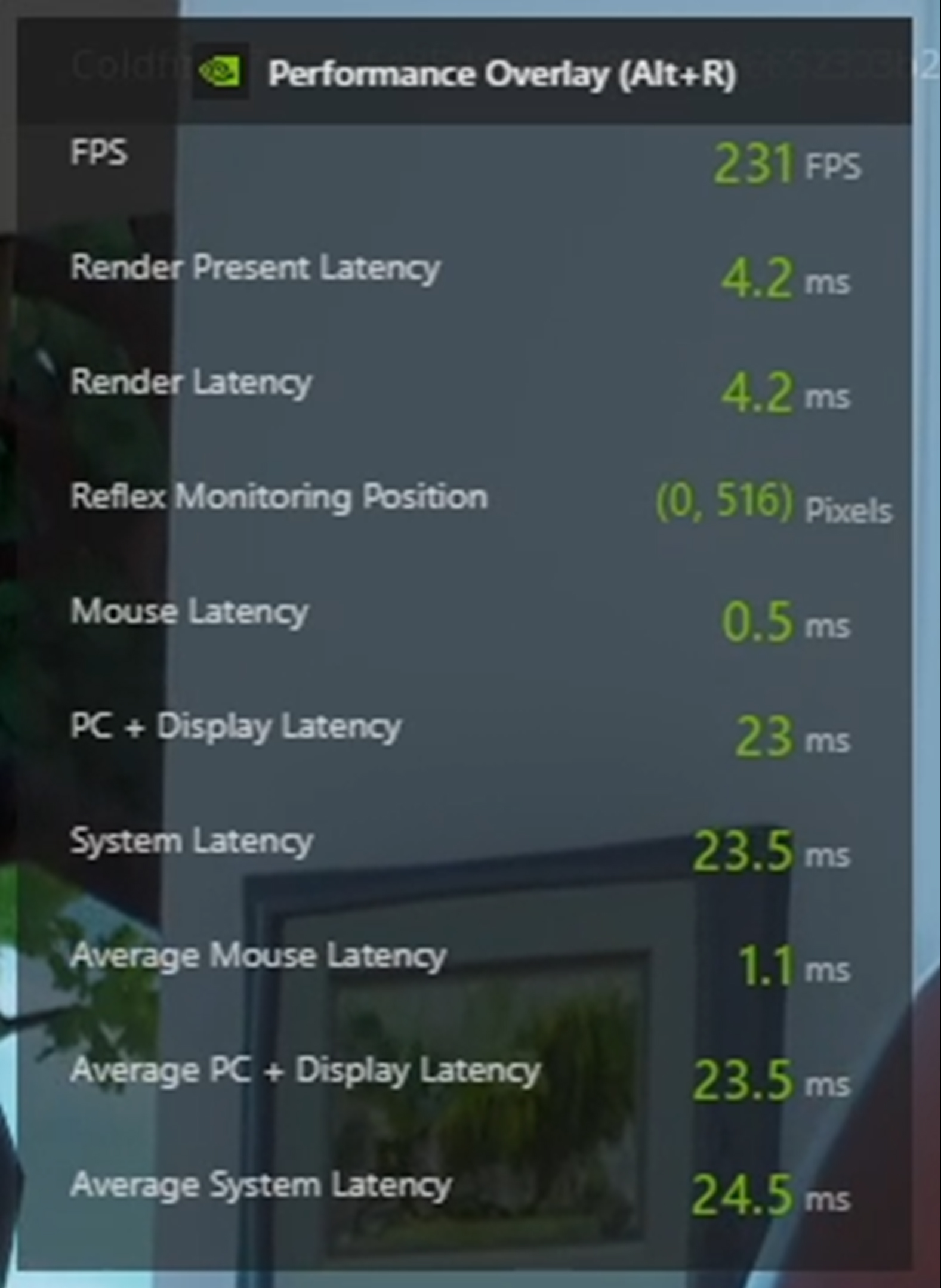
If your ping averages above 12 ms or the Reflex readout shows a spike, troubleshoot before the next round. Re‑position the hotspot antenna for a stronger line‑of‑sight to the nearest 5G cell, switch to the carrier’s low‑latency band (often labeled “gaming” or “ultra‑wideband”), and double‑check that QoS is still active in your router settings. Once the numbers consistently sit under 10 ms, you can enter the lobby with confidence that your connection won’t be the weak link.
Step 5: Optimize Physical Setup & Signal Strength
Place your 5G hotspot as close to a window as possible and keep it away from metal enclosures—metal walls, filing cabinets, or even a metal laptop case can shave up to 30 dB off a mmWave signal. The FCC’s indoor attenuation study shows that such obstacles are the single biggest cause of sudden lag spikes in tight FPS matches. A clear line of sight to the nearest 5G cell tower reduces packet loss and keeps your ping under the 20 ms sweet spot most pros demand.
When a window‑side placement still leaves you with sub‑par throughput, attach an external 5G antenna. The Poynting 5G Directional Antenna adds roughly 12 dBi of gain, which can turn a flaky urban‑canyon connection into a stable, low‑latency pipe. Mount the antenna on a tripod or a flexible gooseneck, point it toward the strongest signal bar on your hotspot’s UI, and secure the cable so it doesn’t tug the device out of its optimal spot.
Finally, fine‑tune the antenna’s azimuth and elevation in 5‑degree increments while monitoring a real‑time ping test to your preferred game server. Keep power cables short and use high‑quality, low‑loss USB‑C or Ethernet adapters to avoid additional latency. Once the signal stabilizes, lock the hotspot in place with a small Velcro strap so it won’t shift during intense practice sessions or on‑the‑move travel.
Step 6: Troubleshoot Common Issues on the Road
Even the most meticulously set‑up 5G hotspot can stumble when you’re on a flight, in a hotel lobby, or crossing a border. The three biggest latency killers for traveling pros are carrier throttling after a data cap, roaming hand‑off delays that force your device to renegotiate a new cell, and VPNs that add extra hops. Spotting the symptom early lets you apply a fix before a match‑point round goes south.
- Check your data usage dashboard; if you’ve crossed ~5 GB of gaming traffic, many carriers automatically throttle to 3‑5 Mbps. Switch to a secondary SIM with an unlimited plan or enable data‑saver mode to stay under the cap.
- When you notice a sudden spike (often >50 ms) after crossing a city border, force a network reselection: pull the hotspot offline for 10 seconds, then turn it back on. This forces the device to attach to the strongest 5G cell and clears lingering hand‑off latency.
- If you run a VPN for privacy, disable it for the duration of the match or use a split‑tunnel that routes only game traffic through the VPN. VPN encryption adds 10‑20 ms on average, which can be the difference between a win and a loss.
If latency spikes persist, reset the APN profile on Android: Settings → Network & internet → Advanced → Access Point Names, then tap the three‑dot menu and choose “Reset to default.” This clears any hidden QoS flags that carriers may have injected during a recent firmware push. After resetting, re‑enter the carrier‑provided APN values and re‑run your benchmark from Step 4 to confirm the improvement.
Conclusion: Keep Your Edge Sharp
You’ve now walked through the full pipeline: pick a 5G‑ready device, lock in a carrier plan with gaming‑grade QoS, fine‑tune the hotspot’s network parameters, benchmark the raw numbers, and finally position the hardware for optimal signal strength. Each step eliminates a common source of lag, turning a portable 5G link into a competitive‑grade pipe that can survive airport lounges, hotel rooms, and cramped team buses.
Low latency is a moving target, so continuous monitoring is non‑negotiable. Schedule a quick speed‑test before every practice session, log ping spikes, and set up automated alerts on your router’s admin panel for any deviation beyond 5 ms. Pair these metrics with a simple spreadsheet or a cloud‑based dashboard so you can spot trends across venues and adjust antenna placement or carrier selection on the fly.
- Run a 30‑second ping test to the game’s matchmaking server each morning.
- Record average latency, jitter, and packet loss in a shared team doc.
- If latency exceeds 5 ms, re‑orient the hotspot, switch to a different 5G band, or fall back to a wired Ethernet tether.
- Review the log after each tournament to refine your hotspot SOP.
Looking ahead, the industry is already promising sub‑5 ms average latency in major metros by 2025, a milestone that could make mobile hotspots indistinguishable from fiber‑backed LANs for FPS esports (source: GSMA 2024 forecast). Stay tuned for carrier‑wide “ultra‑low‑latency” slices and edge‑compute nodes that will shave milliseconds off your reaction time. In the meantime, share your field results in the comments or on our Discord—real‑world data helps the community refine the playbook and pushes manufacturers toward even tighter performance guarantees.